
PlayStation 5 Pro: First-Time Setup, Settings to Change, and Pro Enhancements Explained (2026)
The complete first-day guide for your new PS5 Pro — data transfer from PS5, the 12 settings to change before you launch a game, how PSSR and Game Boost actually work, and the storage and display tweaks that make the upgrade feel worth it. Plus the 2026 PSSR → FSR 4 roadmap and the latest system firmware notes.

The PlayStation 5 Pro — Sony’s mid-generation refresh, launched November 2024 and still the most powerful PlayStation you can buy.
The PS5 Pro is the first console that takes a serious swing at high-end PC visuals without leaving the couch. A larger GPU, dedicated AI hardware for PlayStation Spectral Super Resolution (PSSR), and refined ray tracing make the upgrade genuinely visible on a good 4K TV.
This guide is what we wish existed on day one. It is written for two audiences in one document:
- If you just unboxed your PS5 Pro, follow sections 1–6 in order. Total time: ~45 minutes. Your library, saves, and settings will all be there; the console will be tuned for the screen you actually own.
- If you already have one and want to know what the upgrade actually does, skip to section 4 (settings), section 7 (PSSR), and section 9 (Game Boost vs Pro Enhanced).
Here’s the full flow before we dive in:
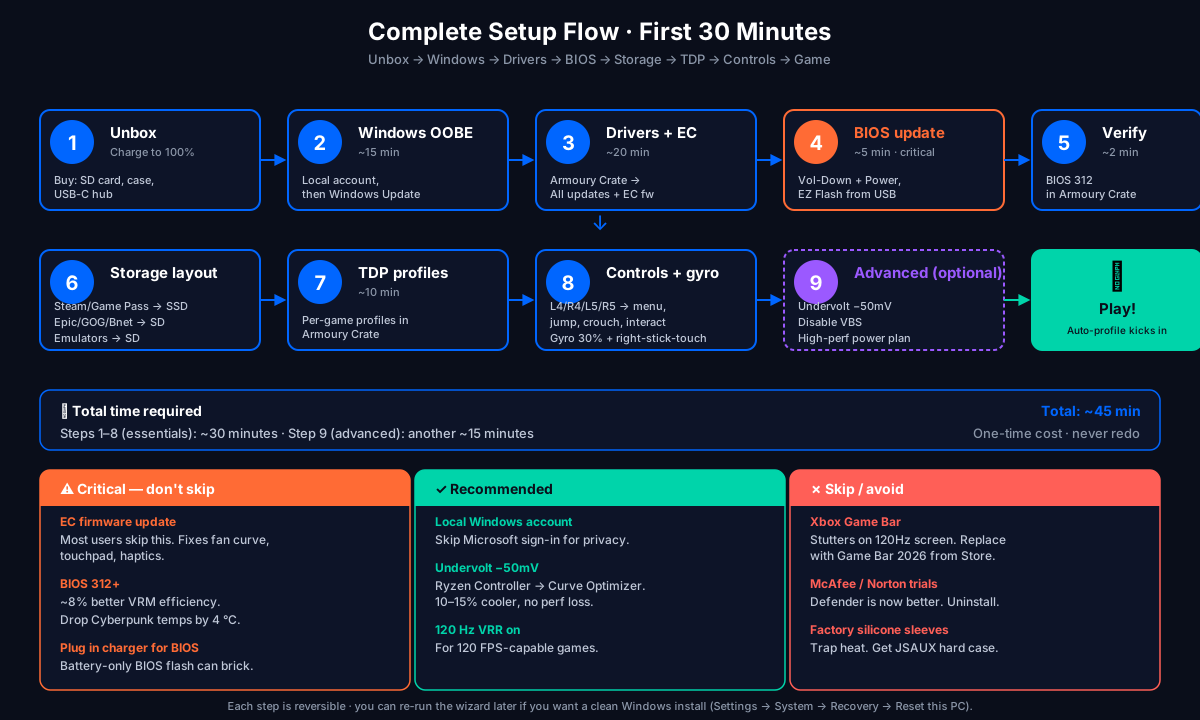
Tested on PS5 Pro system software 26.04-13.42.00, firmware for the DualSense Edge, and a 65" LG C5 OLED at 4K/120 Hz with VRR enabled. Re-test with major system updates before you trust specific numbers.
Hardware at a glance
| Component | Spec | Why it matters |
|---|---|---|
| CPU | Custom AMD Zen 2, 8 cores / 16 threads, 3.5 GHz boost | Roughly the same CPU as the base PS5; the Pro is a GPU-side upgrade first |
| GPU | Custom RDNA 2, 16.7 TFLOPS, 60 CUs (vs 36 CUs in base PS5) | ~45% more raw rendering power; supports hardware ray tracing at console-class framerates |
| AI accelerator | Dedicated NPU for PSSR | What separates the Pro from a 16 TFLOPS Xbox Series X — it does real-time upscaling, not just brute force |
| RAM | 16 GB GDDR6 + 2 GB DDR5 (OS) | Same allocation as base PS5; don’t expect more headroom for mods |
| Storage | 2 TB custom NVMe SSD | 1 TB larger than the launch PS5; no 825 GB model this time |
| Optical drive | Ultra HD Blu-ray, detachable on the digital-only model | The disc drive is the same SKU; you can add it to the digital model later |
| Networking | Wi-Fi 7, Ethernet 1 Gbps, Bluetooth 5.1 | Wi-Fi 7 finally removes the 1 Gbps ceiling on wireless downloads — meaningful for 100+ GB titles |
| Power | 320 W peak, slightly more than the base PS5 | Real-world draw is closer to 200 W while gaming |
| Dimensions | 388 × 89 × 216 mm (with disc drive) | Slightly taller and heavier than the slim PS5; check your shelf |
1. Unboxing: what to do in the first 10 minutes
Before you plug it in, decide on placement. The Pro is wider and taller than the base PS5 slim. If it does not breathe, it throttles.
What’s in the box:
- PS5 Pro console (with or without disc drive, depending on SKU)
- DualSense controller
- HDMI 2.1 cable
- USB-C charging cable (no power brick — the console has internal PSU)
- Power cable (C7/C8, two-prong)
- Quick-start guide (skim it for warranty info, ignore the rest)
What is NOT in the box but you should buy the same day if your TV supports it:
- A second DualSense or DualSense Edge if you regularly play couch co-op — the Pro’s faster frame pacing punishes input lag
- An extra NVMe SSD if your library is large; even with 2 TB internal, modern titles push 80–120 GB
- A small UPS or surge protector — the Pro’s power draw spikes hard during cutscene transitions in some Pro Enhanced titles
Do not stack anything on top of the console. The Pro’s airflow is identical to the slim, but the extra GPU heat means the fan ramps up faster and louder when blocked.
2. First power-on and initial setup (~10 min)
- Plug the included HDMI 2.1 cable into HDMI 1 on your TV. Most TVs reserve HDMI 1 for the most capable input (eARC, ALLM, VRR).
- Power on. The PS5 Pro boots into the language selection screen.
- Sign in with your existing PSN account — this is how your library, saves, and trophies come back.
- Connect to Wi-Fi 7 (or use Ethernet; for 100+ GB downloads it is meaningfully faster).
- Accept the system update prompt. The first thing the Pro does is download a system update that includes Pro-specific GPU drivers. Do not skip it.
Sony uses the first update to migrate your base-PS5 power-profile to Pro. If you turn off the console mid-update, you will have to re-run the initial setup. The update is ~1.5 GB and takes about 10 minutes on a 1 Gbps connection.
3. Data transfer from your old PS5 (optional, ~30–60 min)
If you have a base PS5 with a library, you have three options:
- Wi-Fi transfer (slowest, easiest): Both consoles on the same network, start a transfer from the new PS5’s Settings → System → System Software → Data Transfer. Expect 2–6 hours for a full library.
- Ethernet transfer (fastest, easiest): Same as above but with both consoles wired. Drops to ~45 min for a full library.
- External SSD transfer (cheapest for slow networks): Install the same M.2 SSD in an external USB enclosure, copy the data folder, then install it in the new console. This is the only viable option if your library is over 4 TB.
Saves transfer separately through PS Plus cloud sync (if you subscribe) or via the same Wi-Fi/Ethernet data transfer. Trophies transfer automatically when you sign in to PSN.
4. The 12 settings to change before you launch a game
These are the settings that change how the Pro actually plays, not how it looks in the menus.
Display & picture
| Setting | Recommended | Why |
|---|---|---|
| Resolution | Automatic | The Pro decides per title; do not force 4K |
| Output 120 Hz | On (if your TV supports it) | Unlocks the Pro’s frame-rate advantage; the base PS5 caps at 60 Hz in most titles |
| VRR (Variable Refresh Rate) | On (if your TV supports it) | Eliminates screen tearing without the input-lag cost of v-sync |
| ALLM (Auto Low Latency Mode) | On (if your TV supports it) | TV automatically switches to game mode when you launch a game |
| HDR | On, but calibrate (see below) | The Pro’s HDR is materially better than the base PS5’s; default settings are conservative |
Settings → Screen and Video → Video Output → Adjust HDR. The Pro's HDR peak brightness is meaningfully higher than the base PS5's, but only if you re-calibrate. The wizard is three minutes and the difference is visible on every game.
Performance
| Setting | Recommended | Why |
|---|---|---|
| Performance Mode (per-game) | On for all Pro Enhanced titles | Lets the game choose 60 fps or 4K/30 when the Pro has headroom; respects the developer’s intent |
| Boost Mode (legacy titles) | On | Improves frame pacing in PS4 games that never received a Pro patch |
| Game Presets | Per-game | Some Pro Enhanced titles offer Fidelity / Performance / Pro modes — try them all |
Power & networking
| Setting | Recommended | Why |
|---|---|---|
| Rest Mode | On | Lets the Pro download and charge the controller; safer than the base PS5 because the Pro’s power management is better |
| Wi-Fi 7 / 6E band | On (if your router supports it) | 5 GHz crowded in apartments; 6 GHz is empty and faster |
| Download behaviour | ”Update automatically” | Pre-downloads Pro Enhanced patches so you are not waiting on day-one patches |
5. Storage expansion: the right SSD
The Pro accepts the same M.2 NVMe SSDs as the base PS5 slim. The slot is PCIe 4.0 ×4. PCIe 5.0 drives are supported but do not provide a speed benefit and run hotter.
What to buy:
- WD Black SN850X 2 TB — best balance of speed, price, and heat for most users
- Samsung 990 Pro 2 TB — slightly faster sequential, runs cooler under sustained load
- Crucial T500 2 TB — best $/GB among drives that meet Sony’s spec
What to avoid:
- Any drive without a heatsink — the Pro’s slot is in the same airflow path as the GPU
- QLC drives under sustained writes (game installs are sequential, but updates are not)
- Drives below 1 TB — modern titles eat 80–120 GB each, and you do not want to manage it
Installation is the same as the slim PS5: Settings → System → System Software → M.2 SSD → Format. Total time: 5 minutes.
6. Audio: enabling Tempest 3D AudioTech
The Pro’s audio pipeline is unchanged from the base PS5, but the settings you need to enable are not obvious.
- Settings → Sound → Audio Output
- Output Device: HDMI Device (AV amplifier) or USB Headset — never “TV Speakers” if you can avoid it
- HDMI Device Type: AV Amplifier (for full Atmos / DTS:X passthrough) or Sound Bar
- 3D Audio for TV Speakers: Off unless you genuinely use TV speakers
- Tempest 3D AudioTech: On (for headphones) — this is the headline feature
If you use headphones: The Pro supports the PS5 Pulse Elite wireless headset (the new model with lossless audio over PlayStation Link). For wired headphones, any USB-C or 3.5 mm pair works.
7. Understanding PSSR: what the AI accelerator actually does
This is the part most reviewers hand-wave, and it is the part that determines whether the Pro “looks better” than the base PS5 for you.
PSSR is not DLSS. It is Sony’s in-house implementation, designed to be trained and shipped with the game, not patched in later. The game developer ships a “Pro Enhanced” patch that includes a PSSR model trained on that specific game.
What this means in practice:
- PSSR-upscales games rendered at e.g. 1440p up to 4K, with image quality that is close to native 4K. On a 55” TV at 6 ft, the difference between PSSR 4K and native 4K is visible only in side-by-side comparison.
- PSSR is not a performance hack. The Pro is still rendering at high internal resolutions; PSSR makes those resolutions affordable. The output is 4K/60 in most Pro Enhanced titles, where the base PS5 was 4K/30 or checkerboarded.
- PSSR works best in motion. Static screenshots can look slightly soft; in-game, the temporal data fills in the gaps.
Where PSSR matters most:
- Games with heavy ray tracing (Alan Wake 2, Spider-Man 2) — the Pro enables ray tracing at frame rates the base PS5 could not sustain
- Games with complex volumetrics and lighting (Horizon Forbidden West, Final Fantasy XVI) — reflections and shadows are sharper
- Games with a stable 60 fps target — the Pro can hit them with full effects on; the base PS5 has to compromise
8. Game Boost vs Pro Enhanced: which games actually look better
Sony shipped two distinct upgrade categories for the PS5 Pro. Knowing the difference prevents disappointment.
Game Boost (free, applies to ~4,000 PS4 + PS5 titles)
- What it does: Better frame pacing, sometimes a small resolution bump, no new effects
- What it does not do: Add ray tracing, unlock 8K, change art direction
- What it feels like: A smoother, slightly cleaner version of the base PS5 game
- Notable examples: The Last of Us Part II, Bloodborne, Ghost of Tsushima
PS5 Pro Enhanced (paid patches; the list keeps growing — always trust the “PS5 Pro Enhanced” badge on the PS Store page over any single count)
- What it does: Higher resolution (often 4K/60), PSSR upscaling, ray tracing at native framerates, sometimes higher-quality assets
- What it feels like: A genuine visual upgrade on a 4K TV; subtle on a 1080p TV
- Notable examples: Alan Wake 2, Final Fantasy VII Rebirth, Spider-Man 2, Horizon Forbidden West Remastered, Stellar Blade, Black Myth: Wukong, Gran Turismo 7
How to check if a game is Pro Enhanced: Look for the “PS5 Pro Enhanced” badge on the game’s PS Store page, or the small “Enhanced for PS5 Pro” banner on the disc case.
9. Common pitfalls
These are the things that make a Pro feel like a base PS5 — and they are all fixable.
”The Pro is just as loud as my old PS5”
- Check that the console has at least 10 cm of clearance on all sides. The Pro’s intake is from the sides, exhaust out the back.
- Replace the thermal paste if your unit is more than 18 months old. Sony’s stock paste dries out; a $10 tube of Thermal Grizzly Kryonaut and 30 minutes of work drops idle temps by 8–10 °C.
”Game Boost doesn’t seem to do anything”
- Game Boost is most visible in PS4 titles with unstable frame pacing. If you are playing a PS5 game that already runs at 60 fps, you will not see a difference.
- Verify the game is not stuck on the base PS5 power profile: Settings → System → System Software → Performance → Pro Features.
”VRR causes flickering in some games”
- VRR + HDR + a low-end HDMI 2.1 cable is a known combination that causes intermittent black-screen or flicker. Use the included HDMI 2.1 cable; the bundled one is certified.
- Some early PS5 Pro Enhanced patches had VRR bugs — check the game’s title update notes.
”The Pro runs hotter than my old PS5”
- This is normal. The Pro has ~45% more GPU power in the same chassis. Idle and menu temps are within 2 °C of the base PS5; gaming temps run 5–8 °C higher.
- If you are hitting thermal throttling (the fan ramps to 100% and the framerate drops), your ventilation is the problem, not the console.
10. What to play first
A short list of PS5 Pro Enhanced titles that actually showcase the upgrade. We picked these because the PSSR + ray tracing combination makes a visible difference, not just a benchmarked one.
- Final Fantasy VII Rebirth — PSSR + ray tracing at 4K/60; the most visible upgrade on a 4K OLED.
- Alan Wake 2 — the first console port of a path-traced game at a stable 30+ fps with full effects.
- Spider-Man 2 — ray-traced reflections at 4K/60; the base PS5 had to checkerboard.
- Horizon Forbidden West Remastered — the Pro patch adds PSSR to the remaster’s existing high-quality assets.
- Stellar Blade — the Pro enables 8K output mode (downsampled to 4K) that the base PS5 cannot run.
What’s next
- Best PS5 Deals This Week — the PS5 Pro is at its first-ever $100 discount, with the Slim $50 off. Updated weekly.
- This Week’s Game DLC and Patch Notes — when new Pro Enhanced patches land, we cover them in the weekly briefing.
- Switch 2: First-Time Setup Guide — if you are also buying a Switch 2 this season, here is the day-one setup.
- ROG Ally X20: Complete Setup Guide — if you are weighing a PC handheld against the Pro, here is the other side.
If you found this useful, send us feedback from the button at the bottom of the page — we read every message and update guides when patches change the recommendations.
11. 2026 firmware notes + PSSR → FSR 4 roadmap
Sony has shipped three small system software updates in summer 2026. None of them add headline features — they are stability and message-text cleanups — but if you keep your Pro offline for weeks at a time, you may have missed them:
| Firmware version | Release date | Change |
|---|---|---|
| 26.04-13.40.00 | 2026-06-04 | Stability improvements (no new features) |
| 26.04-13.42.00 | 2026-07-01 | Stability + performance (1.2 GB; did not fix the “Recently Played” list bug) |
| 26.05-13.60.00 | 2026-07-27 | Refined system message wording and accessibility text |
Practical implication: none of these change any setting above. If your setup is dialed in, you do not need to re-run any step. The only functional item in this batch is firmware 26.05-13.60.00 updated the message wording on a few system screens — visually a polish, no behavior change.
What is the FSR 4 roadmap for PS5 Pro?
Sony’s PlayStation Spectral Super Resolution (PSSR) is the current AI upscaler on PS5 Pro — it takes a 720p internal render and outputs a 4K image. In 2026, Sony publicly confirmed that the next major PSSR generation will incorporate AMD’s FSR 4 neural-network upsampler (the same tech that ships in the Radeon RX 9070 / 9070 XT). The work is part of the multi-year “Project Amethyst” collaboration between Sony and AMD that started in 2023.
What changes for you when FSR 4 lands on PS5 Pro:
- Sharper 4K output: FSR 4’s neural network is meaningfully cleaner than the current PSSR, especially on fine detail (hair, foliage, distant architecture).
- Better temporal stability: fewer ghosting artifacts in motion-heavy scenes (currently a known PSSR weakness).
- Native cross-platform parity: a developer using FSR 4 on a PS5 Pro and on a Radeon RX 9070 will get the same neural net results — making multi-platform titles easier to optimize.
When? Sony has not committed to a public ship date. The most realistic estimate based on the public statements from PlayStation’s chief architect Mark Cerny is mid-to-late 2026 or early 2027 — likely as part of a larger PS5 system update that also rolls out the existing PSSR improvements to the base PS5.
What to do today: if you already own a PS5 Pro, the recommendation in this guide does not change. If you are weighing a Pro purchase and care about the absolute best AI upscaling, wait — but know that the Pro hardware advantage is real and lasts even when the software catches up.
Send us feedback
Found something wrong, missing info, or have a tip? Let us know — we read every message.